

Agent Node
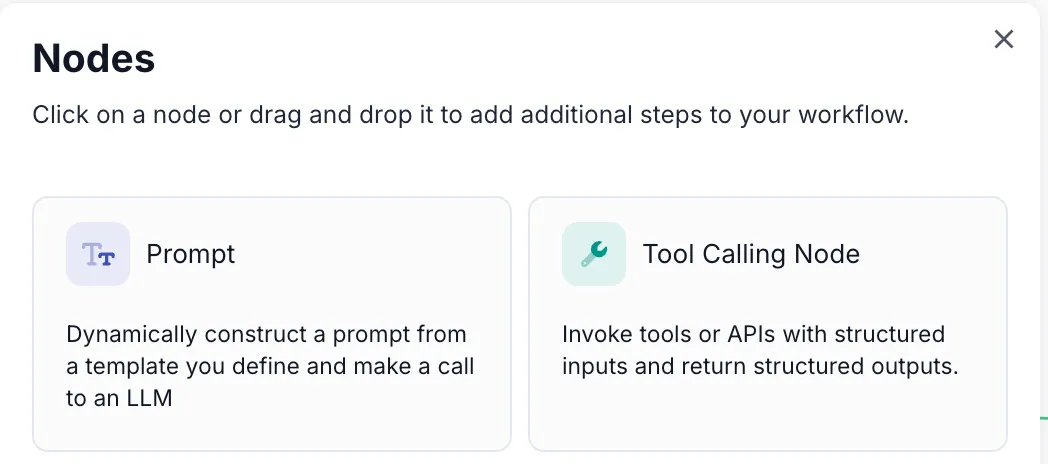
Agent Node streamlines tool calling within Vellum Workflows by automatically handling OpenAPI schema generation, loop logic, and function call output parsing. This eliminates the tedious manual work traditionally required for implementing function calling patterns.
Key Features
Agent Node provides several advantages over manual function calling implementation:
- Automatic Schema Generation: No need to manually define OpenAPI schemas for your tools
- Built-in Loop Logic: Automatically handles the iterative calling pattern until a text response is received
- Output Parsing: Automatically parses function call outputs without manual intervention
- Multiple Tool Support: Configure multiple tools within a single node
Configuration
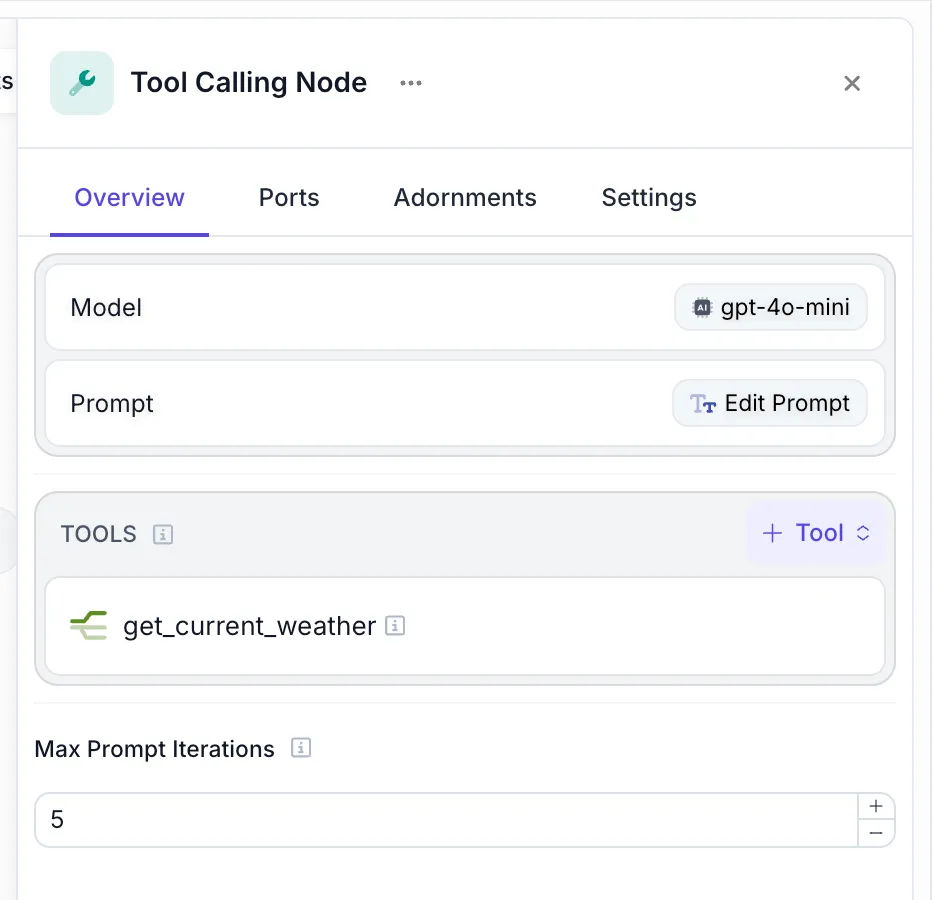
Agent Node requires two main components:
Model and Prompt Configuration
Configure the LLM model and prompt that will determine when and how to call the available tools.
Tool Definitions
Define the tools that the model can call. The node automatically infers the required schema for each tool type.
Supported Tool Types
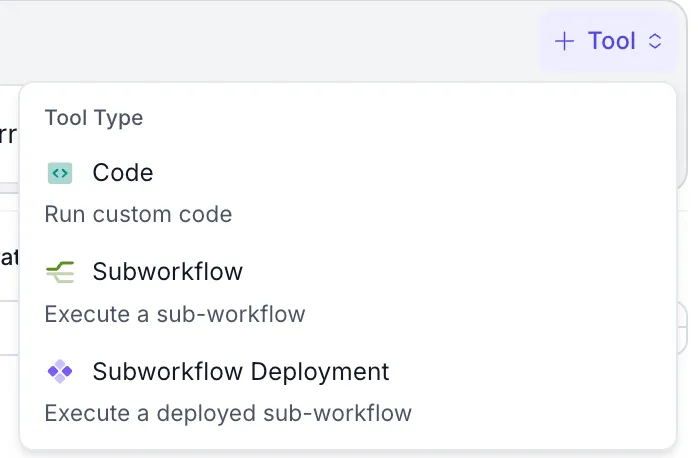
Agent Node supports three types of tools:
Raw Code Execution
Execute custom Python or TypeScript code as a tool. The node automatically generates the appropriate schema based on your code’s parameters and return values.
Use Cases:
- Data processing and transformation
- API calls to external services
- Mathematical calculations
- Custom business logic
Inline Subworkflows
Call other workflows defined inline within your current workflow as tools. This enables modular workflow design and reusability.
Use Cases:
- Breaking complex workflows into smaller, manageable components
- Reusing common workflow patterns
- Creating specialized processing pipelines
Subworkflow Deployments
Execute deployed subworkflows as tools, allowing you to leverage existing workflow deployments with proper versioning and release management.
Use Cases:
- Calling production-ready workflow components
- Leveraging workflows from other teams or projects
- Maintaining version control over tool implementations
Composio Integration Setup
To use Composio tools with the Agent Node, you’ll need both a Composio account and proper configuration in Vellum.
Composio Setup
Prerequisites:
- A Composio account (free tier includes up to 20k tool calls/month)
- Access to the tools you want to authenticate
Step 1: Tool Authentication
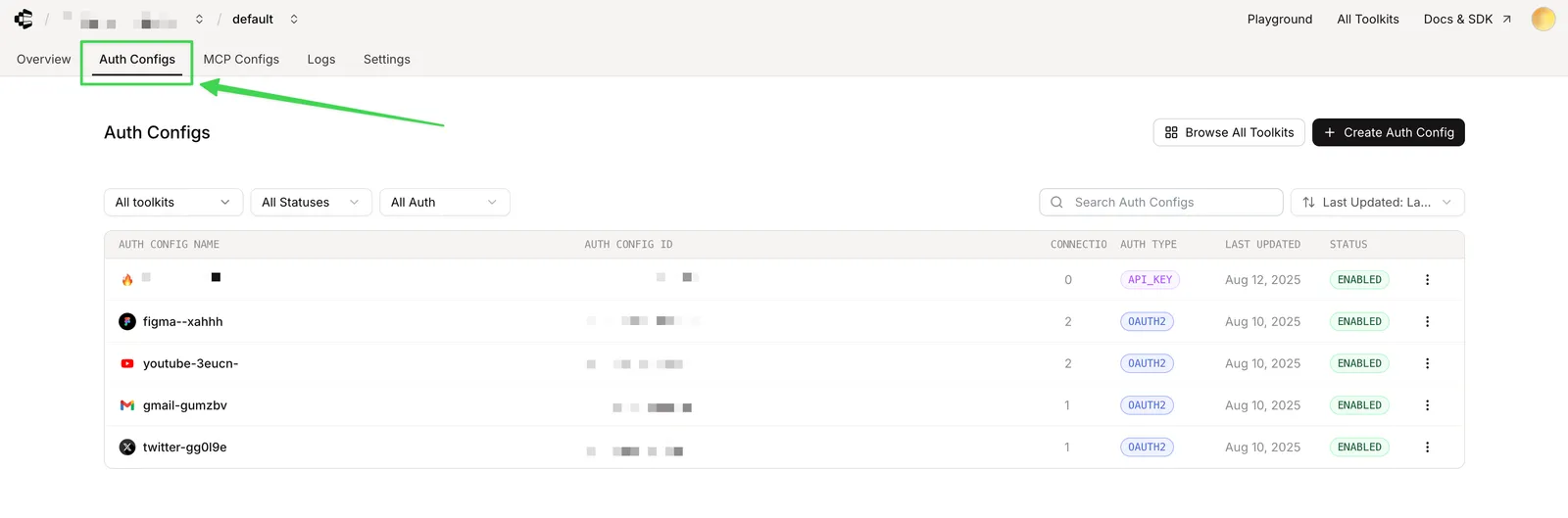
- Navigate to your Composio profile and go to the Auth Configs section
- Click “Create Auth Config”
- Select the tool you want to authenticate (e.g., Gmail, Notion, Jira)
- For most tools, use the OAuth 2 option with default settings
- Click “Create [Tool Name] Auth Config”
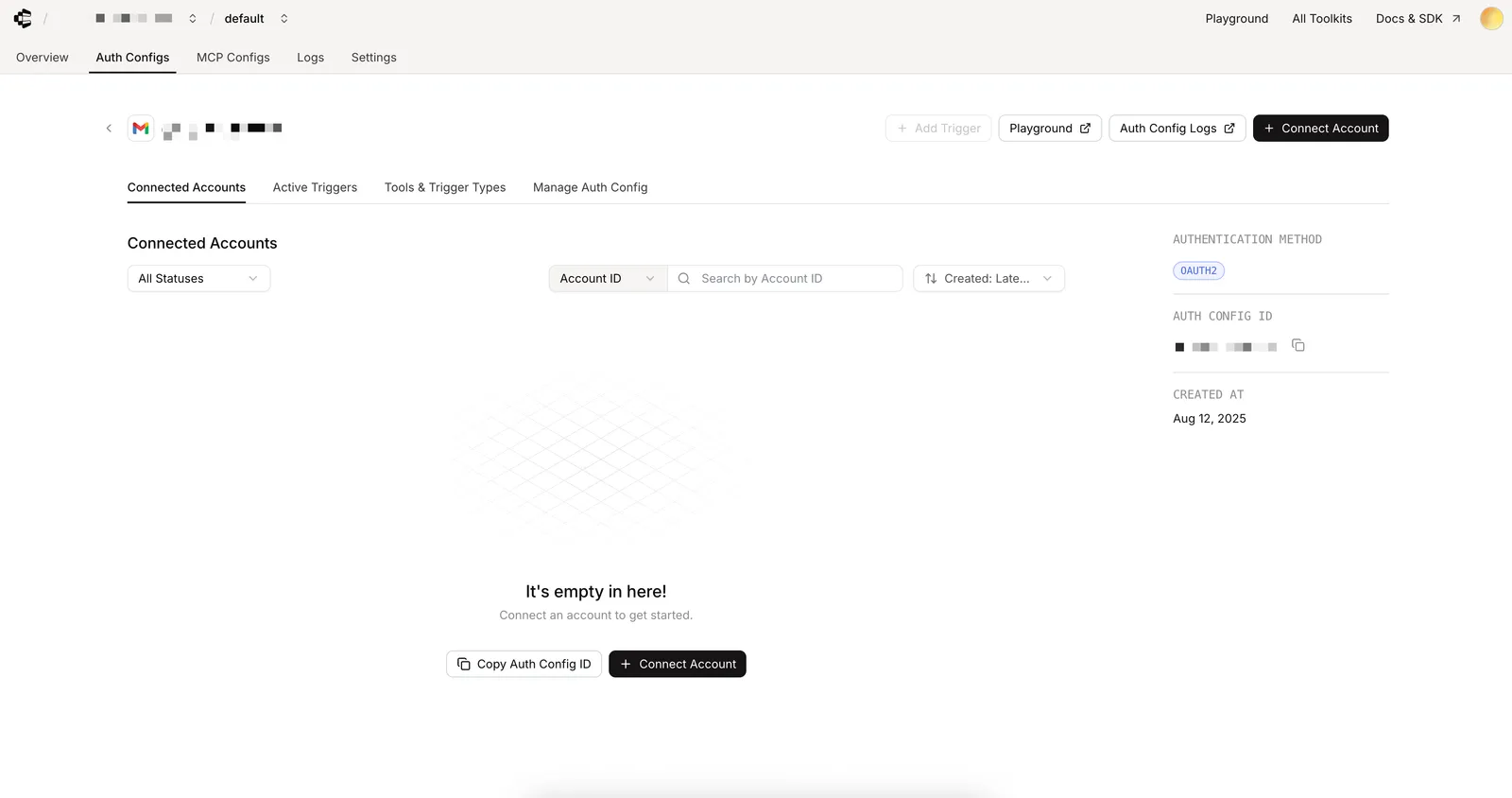
Step 2: Connect Your Account
- In the tool configuration page, click “Connect Account”
- Complete the OAuth 2 authorization flow for your chosen service
- When prompted for a User ID, enter “default”
- Verify the connection shows as “Active” status
Step 3: Get Your Composio API Key
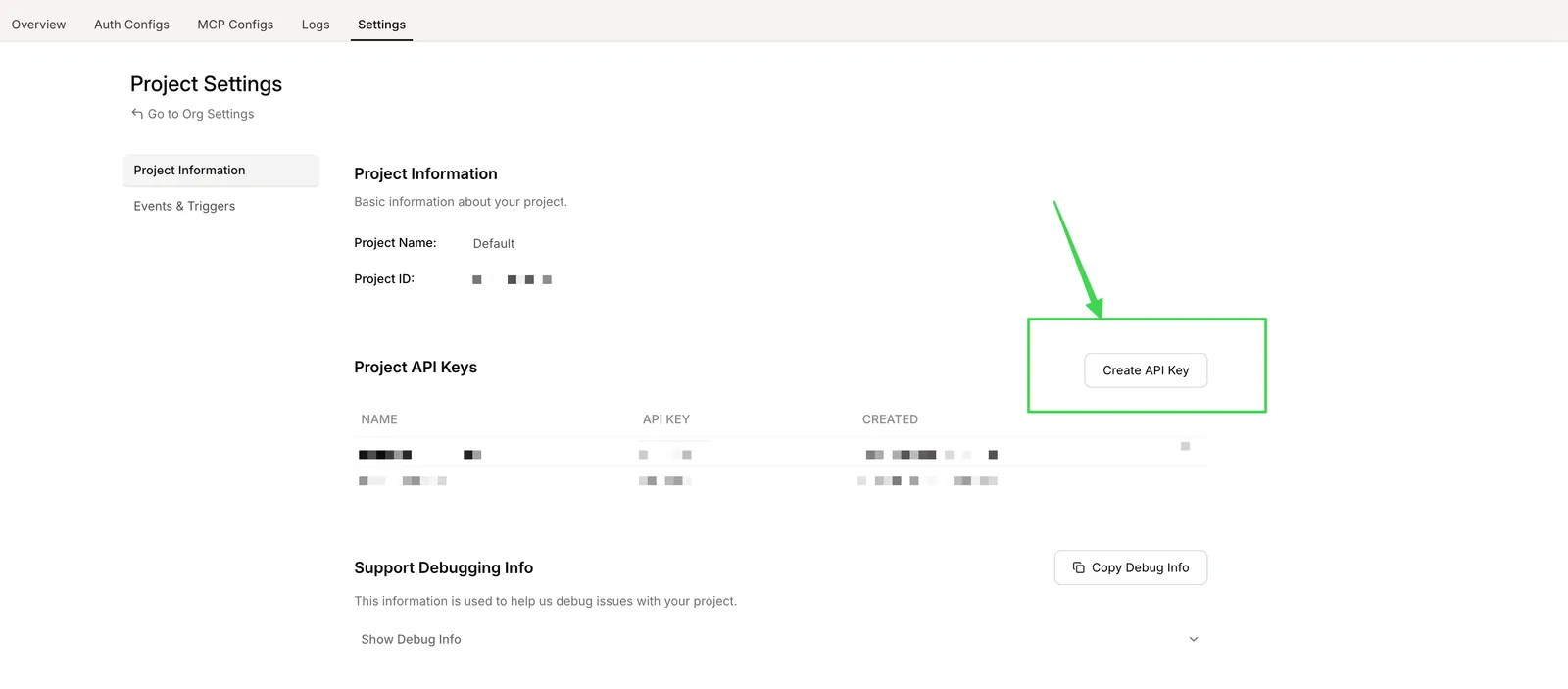
- Navigate to Settings in your Composio dashboard
- Click “Create API key”
- Copy the API key to your clipboard for use in Vellum
Composio Setup in Vellum
Step 1: Add Composio Secret
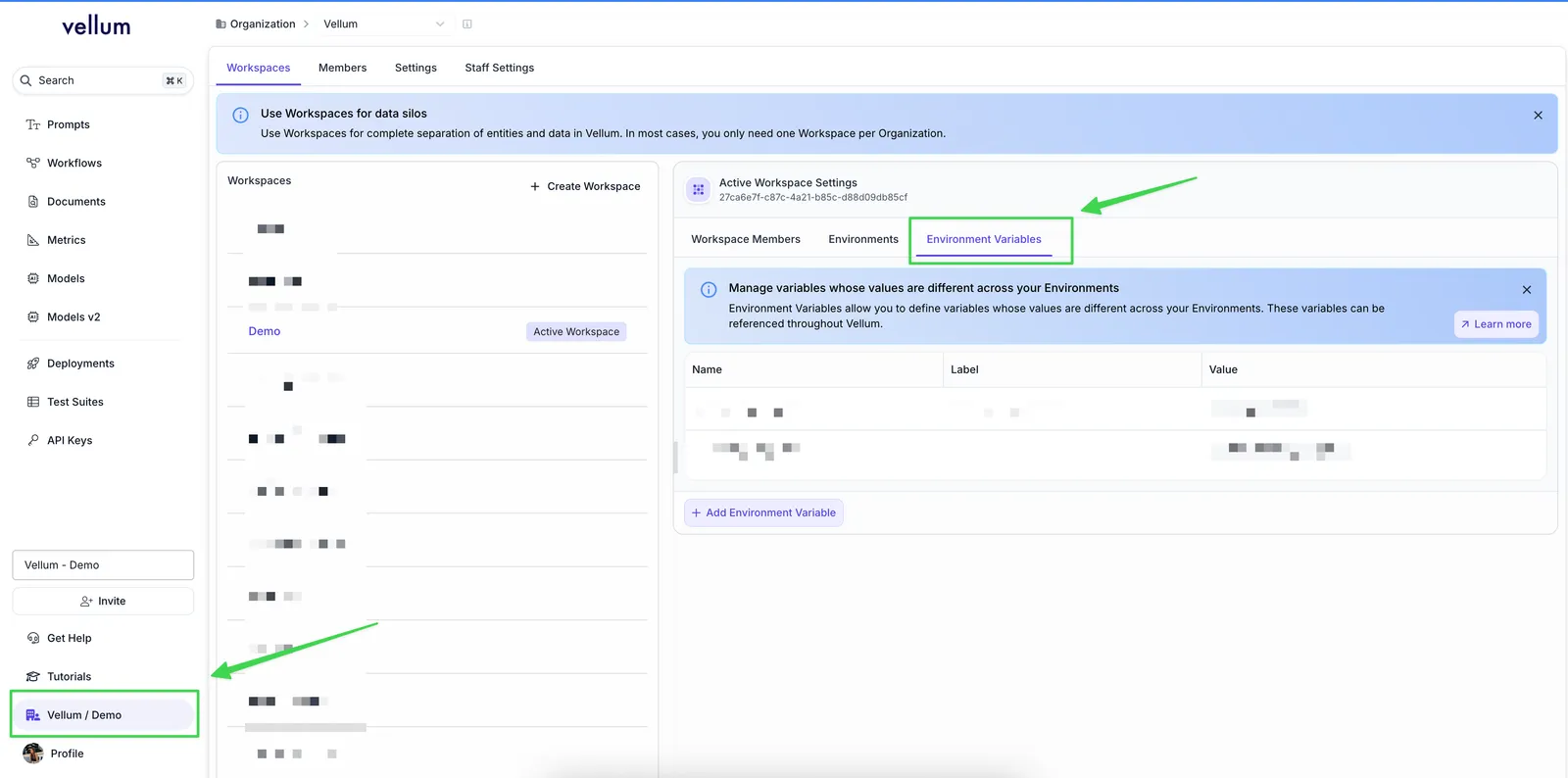
- In Vellum, navigate to Workspace Settings
- Find the Environment Variables section
- Click “Add Environment Variable”
- Create a new variable with your Composio API key
Step 2: Configure Agent Node with Composio Tools
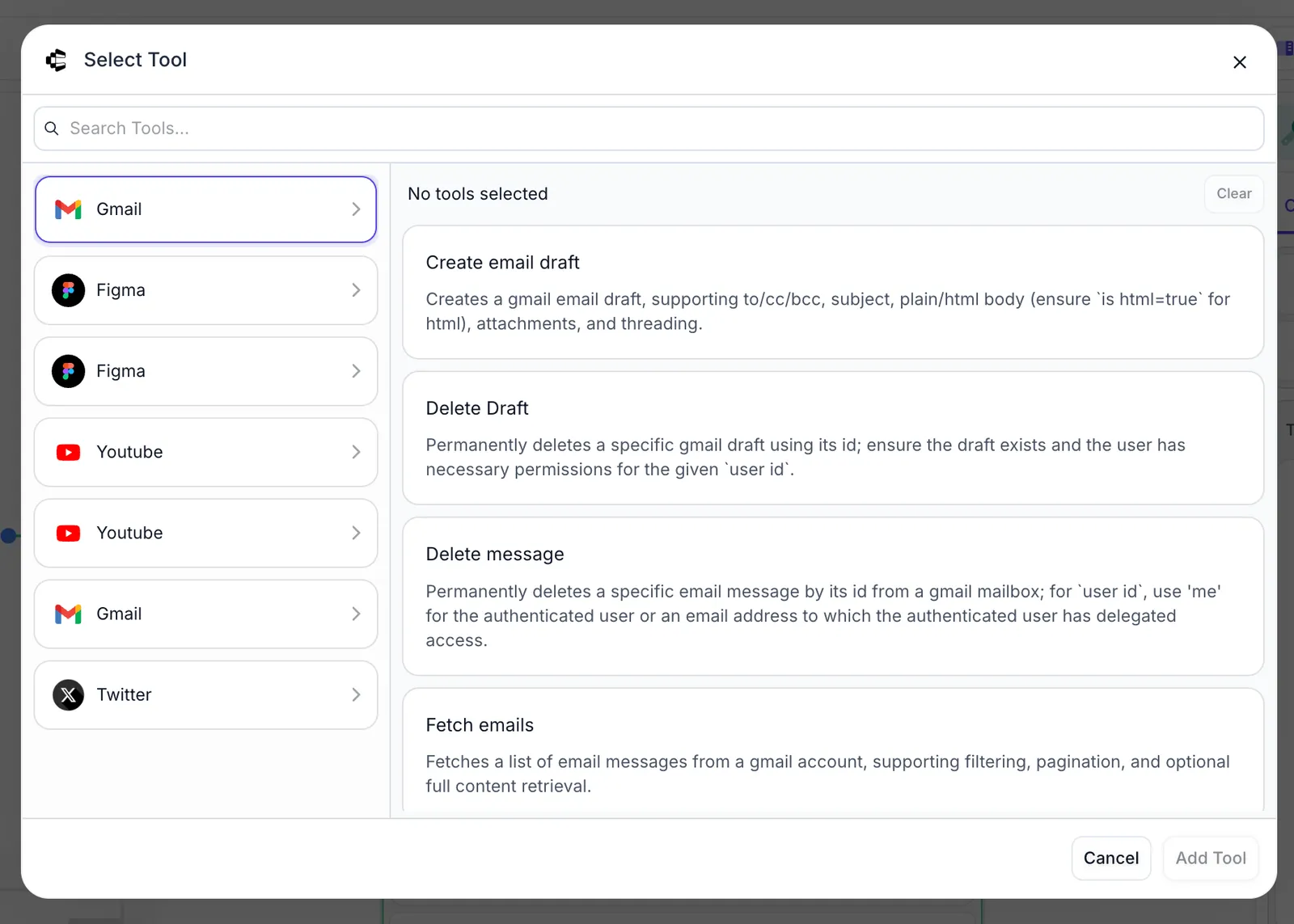
- Add an Agent Node to your workflow
- In the Tool dropdown, select “Composio tools”
- Choose the specific tools you want to enable for the LLM
- The node will automatically handle schema generation and authentication
Example Usage:
Once configured, you can prompt the Agent Node to use Composio tools naturally:
The LLM will automatically:
- Generate the 5 quotes
- Use the Gmail Composio tool to create an email draft
- Address it to the specified recipient
Node Outputs
Agent Node provides two accessible outputs for downstream nodes:
Chat History Output
The chat_history output contains the accumulated list of messages that the Prompt managed during execution. This includes:
- Initial user messages
- Assistant responses
- Function call messages
- Function result messages
This output is useful for:
- Maintaining conversation context in chatbot applications
- Debugging the tool calling sequence
- Passing conversation history to other nodes
Text Output
The text output contains the final string response from the Prompt after all tool calling iterations are complete. This is the final text response that the model generates once it determines no more tools need to be called.
Execution Flow
Agent Node follows this execution pattern:
- Initial Prompt: The configured prompt is sent to the selected model with the available tools
- Tool Decision: The model decides whether to call a tool or provide a text response
- Tool Execution: If a tool is called, the node executes the appropriate tool type
- Result Integration: The tool result is added to the chat history
- Iteration: Steps 2-4 repeat until the model provides a final text response
- Output: Both the complete chat history and final text response are made available to downstream nodes
Max Prompt Iterations
The node includes a configurable “Max Prompt Iterations” setting to prevent infinite loops. This setting controls the maximum number of times the model can call tools before the node terminates execution.
Best Practices
Tool Design
- Keep individual tools focused on specific tasks
- Provide clear, descriptive names for your tools
- Include comprehensive docstrings or descriptions for better model understanding
Prompt Engineering
- Clearly describe when each tool should be used
- Provide examples of appropriate tool usage
- Include instructions for when to stop calling tools and provide a final response
Error Handling
- Consider using Node Adornments like Try or Retry for robust error handling
- Test your tools thoroughly before deploying to production
- Monitor tool execution for unexpected behaviors
Performance Optimization
- Set appropriate Max Prompt Iterations to balance functionality and performance
- Consider the computational cost of each tool when designing your workflow
- Use caching strategies where appropriate for expensive operations
Agent Node significantly reduces the complexity of implementing function calling patterns in Vellum Workflows, allowing you to focus on building powerful AI applications rather than managing the underlying infrastructure.